You can write the perfect welcome email, send it in milliseconds, and still lose it to the spam folder. Inbox providers like Gmail, Outlook and Yahoo decide where a message lands long before anyone reads it, and the first thing they check is whether the sender is who they claim to be.
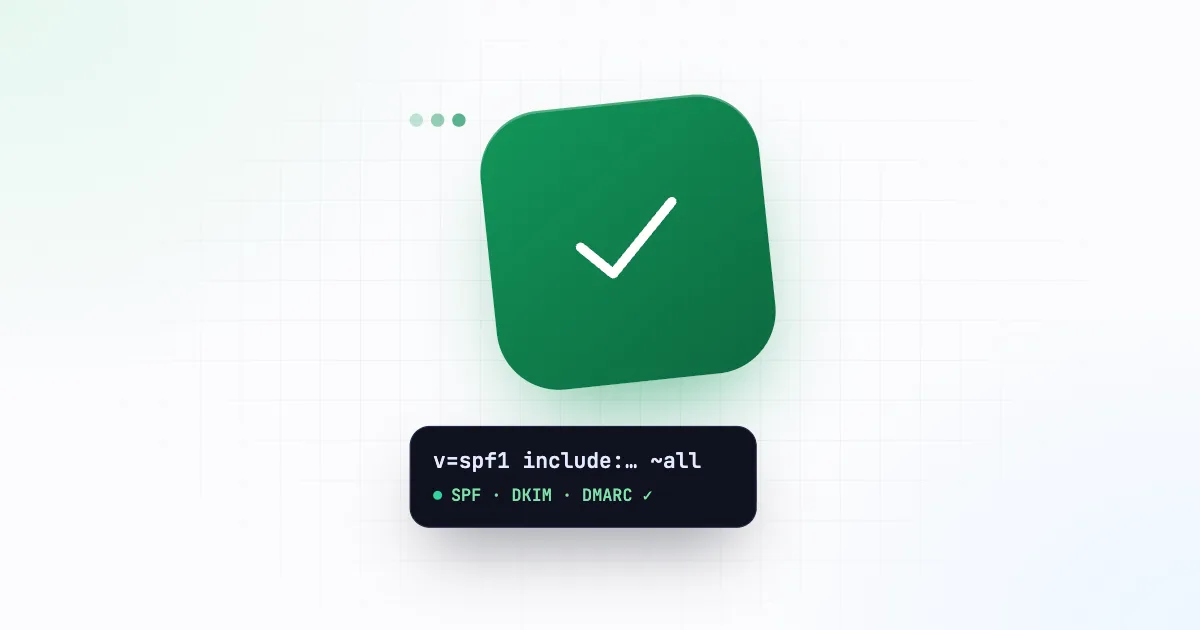
Three DNS records answer that question: SPF, DKIM and DMARC. This checklist explains each one in plain terms and shows how to set them up for the domain you send from.
Why this matters more than ever
In February 2024 Google and Yahoo began enforcing stricter rules for everyone who sends to their users:
- All senders must authenticate with SPF or DKIM, send over TLS, and keep their spam complaint rate low (Google asks for under 0.3%).
- Bulk senders, roughly 5,000 or more messages a day to Gmail, must have SPF and DKIM and a DMARC policy, with the visible From domain aligned to them. Marketing mail also needs one-click unsubscribe.
Other providers have followed. Messages that fail these checks are increasingly rejected outright, not just filed as spam.
Where Inbixio fits
With Inbixio, your emails are delivered by your own SMTP server: the mailbox you connected under Email Servers. That means your authentication records describe your mail provider (Google Workspace, Microsoft 365, Zoho, your host), not Inbixio. Set them up once for your domain and every email sent through the API benefits.
The examples below use yourco.com. Replace it with your domain.
1. SPF: who may send for your domain
SPF (Sender Policy Framework) is a TXT record listing the servers allowed to send email for your domain. Receivers compare the server that delivered a message against this list.
Add one TXT record at the root of your domain:
yourco.com. TXT "v=spf1 include:_spf.google.com ~all"The include: part depends on your provider:
| Provider | SPF include |
|---|---|
| Google Workspace | include:_spf.google.com |
| Microsoft 365 | include:spf.protection.outlook.com |
| Zoho Mail | include:zohomail.com |
| Hosting providers | Shown in your hosting panel |
Rules that trip people up:
- One SPF record per domain. If you use two services, combine them:
v=spf1 include:_spf.google.com include:spf.protection.outlook.com ~all. Two separate SPF records make both invalid. - At most 10 DNS lookups. Each
include:counts, and so do the includes inside it. Remove services you no longer use. - End with
~all(soft fail) while you are setting up. Move to-all(hard fail) once you are sure the list is complete.
2. DKIM: a signature on every message
DKIM (DomainKeys Identified Mail) adds a cryptographic signature to each email. Your mail provider signs with a private key, and you publish the matching public key in DNS so receivers can verify that the message was not altered and really came from your domain.
You don’t write this record by hand. Your provider generates it:
- Google Workspace: Admin console → Apps → Google Workspace → Gmail → Authenticate email.
- Microsoft 365: Microsoft Defender portal → Email authentication settings → DKIM.
- Zoho Mail: Admin console → Domains → your domain → Email configuration → DKIM.
Each gives you a record to publish, typically a TXT or CNAME at a name like google._domainkey.yourco.com. Add it in your DNS, wait for it to propagate, then click Start authentication (or the equivalent) in the provider’s console. Use a 2048-bit key if you are offered the choice.
3. DMARC: the policy that ties it together
DMARC tells receivers what to do when a message fails SPF and DKIM, and asks them to send you reports. It also checks alignment: the domain in the visible From address must match the domain that passed SPF or DKIM.
Start in monitoring mode:
_dmarc.yourco.com. TXT "v=DMARC1; p=none; rua=mailto:dmarc@yourco.com; adkim=r; aspf=r"p=noneonly monitors. Nothing is blocked while you check the reports.rua=is where daily aggregate reports go. They are XML files, so a free DMARC report viewer makes them readable.
After two to four weeks of clean reports, tighten the policy step by step: p=quarantine (failing mail goes to spam), then p=reject (failing mail is refused). That last step is what stops other people sending phishing in your name.
4. Make your sender address consistent
With Inbixio, emails are sent from the address of the SMTP username you connected, for example notifications@yourco.com. To keep alignment simple:
- send from an address on the same domain you set SPF, DKIM and DMARC up for,
- use a small, stable set of sender addresses (
notifications@,security@,billing@), and - if different services should use different addresses, connect one server per address and pin each API key to its server.
5. Habits that protect your reputation
Authentication proves who you are; your behaviour decides whether receivers trust you:
- Only email people who expect it. Transactional mail (receipts, resets, codes) has very low complaint rates. Keep marketing separate and opt-in.
- Remove addresses that bounce. Repeatedly sending to invalid mailboxes looks like a spammer’s list. Bounce notices arrive in the mailbox you send from (the one you connected to Inbixio), so check it and remove those addresses from your lists.
- Write like a human. A clear subject, a plain-text-friendly layout, a sender address that accepts replies and no link shorteners.
- Ramp up gradually. A new domain that suddenly sends 50,000 emails looks suspicious. Increase volume over a few weeks.
How to check your setup
- Send a test through Inbixio to a Gmail address you control.
- In Gmail, open the message, click ⋮ → Show original, and look for
SPF: PASS,DKIM: PASSandDMARC: PASS. - For ongoing monitoring, register your domain in Google Postmaster Tools to see your spam rate and reputation.
The checklist
- One SPF record that includes your mail provider, under 10 lookups
- DKIM enabled in your provider, with the DNS record published and verified
- DMARC at
p=nonewith reports going to a monitored address - Sender addresses on the same domain as your SPF, DKIM and DMARC records
- Gmail’s “Show original” shows PASS for all three
- A reminder to move DMARC to
quarantineand thenreject
Next, put it to work on the emails users wait for most: OTP and verification codes and password resets.
Send it with Inbixio
Connect your own SMTP server, create a scoped API key and send from any language with one HTTPS request.